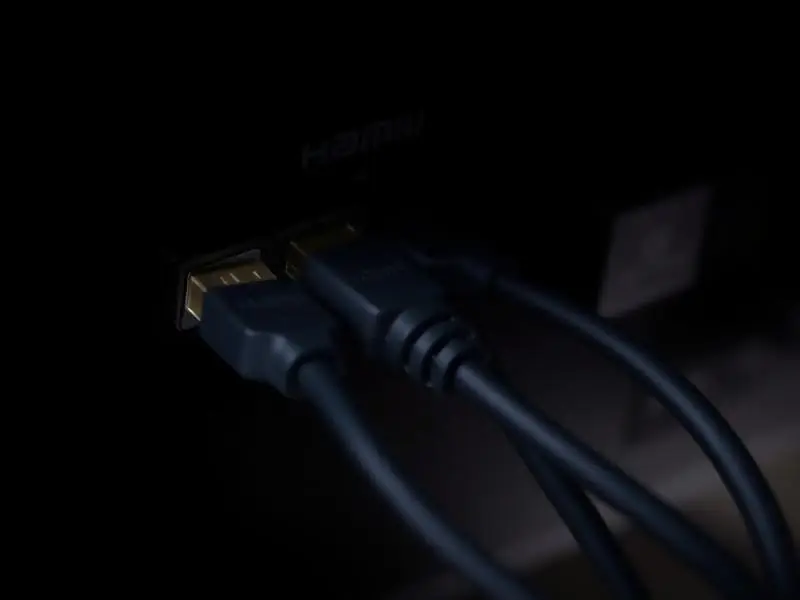
'No Signal' means the TV is working but is not receiving a picture on the input you selected. In most homes this is caused by the wrong input, a loose or damaged cable, or the TV and device failing to 'handshake'. Follow these steps in order.
Step-by-step fixes
- Check the source is on. The set-top box, laptop or console must be switched on and not in standby.
- Select the correct input. Press Source/Input and choose the HDMI number printed next to the port you used (HDMI 1, HDMI 2…).
- Reseat the cable. Unplug both ends and push them in firmly. HDMI plugs loosen when the TV is moved or cleaned.
- Swap the cable. HDMI cables fail more often than TVs. Try a known-good cable.
- Try another HDMI port on the TV. If the other port works, the first port may be damaged.
- Power cycle both devices. Turn off the TV and the source, unplug both from the wall for 60 seconds, plug in the TV first, then the source.
- Check HDMI-CEC settings. Features such as Anynet+, SimpLink or Bravia Sync sometimes confuse the handshake. Try turning them off and on again.
- Lower the output resolution on the source. Some older TVs cannot display 4K or high refresh-rate signals from new consoles or laptops.
Signs the HDMI port is damaged
- The port feels loose or the cable falls out easily.
- The picture appears only when you hold the cable at an angle.
- Visible burn marks or bent pins inside the port.
- No HDMI port works, even with good cables and devices – the HDMI section of the main board may have failed, often after a power surge through the set-top box.
A damaged port can usually be replaced or the HDMI section repaired without changing the whole board. See our TV repair services for HDMI and connectivity repairs.
Tip: Always plug the TV and the set-top box into the same spike guard. Different earth levels between two sockets can damage HDMI ports.
Checks for set-top boxes (DTH and cable)
- Look at the set-top box's front display or light. If it is off or blinking, the box itself may be in standby or rebooting.
- Restart the box from its own power switch and wait for it to fully start before changing the TV input.
- If the box is set to a resolution the TV cannot show (for example 1080p on an older HD-ready TV), press the box's resolution or format button, or reset its video settings to 'Auto'.
- Connect the box to the TV with the AV (red-white-yellow) cable if both have it. If the picture appears on AV but not HDMI, the HDMI cable or port is the likely fault.
HDMI ARC and soundbars
If you connected a soundbar to the HDMI port labelled ARC or eARC and the picture input stopped working, check that the set-top box is on a different HDMI port. ARC ports carry sound to the soundbar and work best when the TV's HDMI-CEC setting is on. Turning the soundbar off and on after the TV has started often restores the link.
Please do not open the television yourself. Power boards can hold a charge even when unplugged, so internal checks should be left to a trained technician.